
You can send and receive direct private or group messages in Moodle.
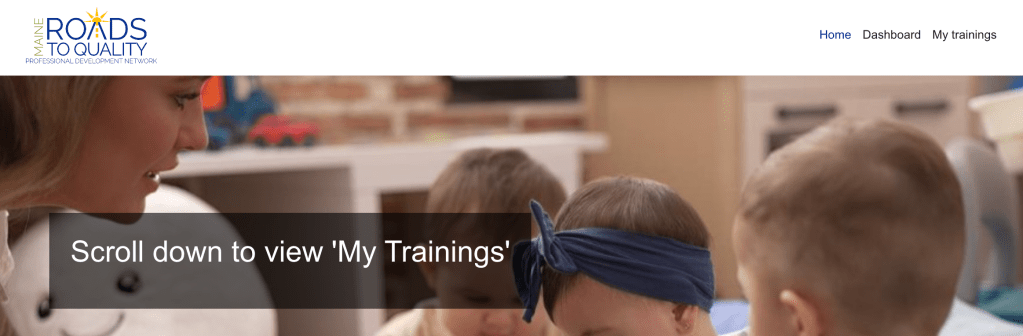
You need to have the Online training access “Home” page active.
Or have your current training course open.
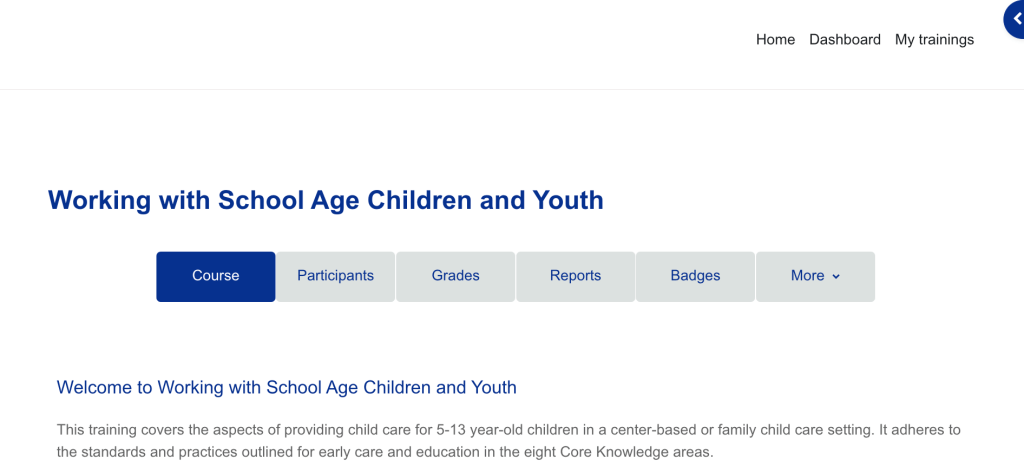
On either of these options you will have access to a BLUE Tool Bar located in the top right hand corner.

You now have 2 options for accessing “Messages”.
- Click on the message cloud icon.
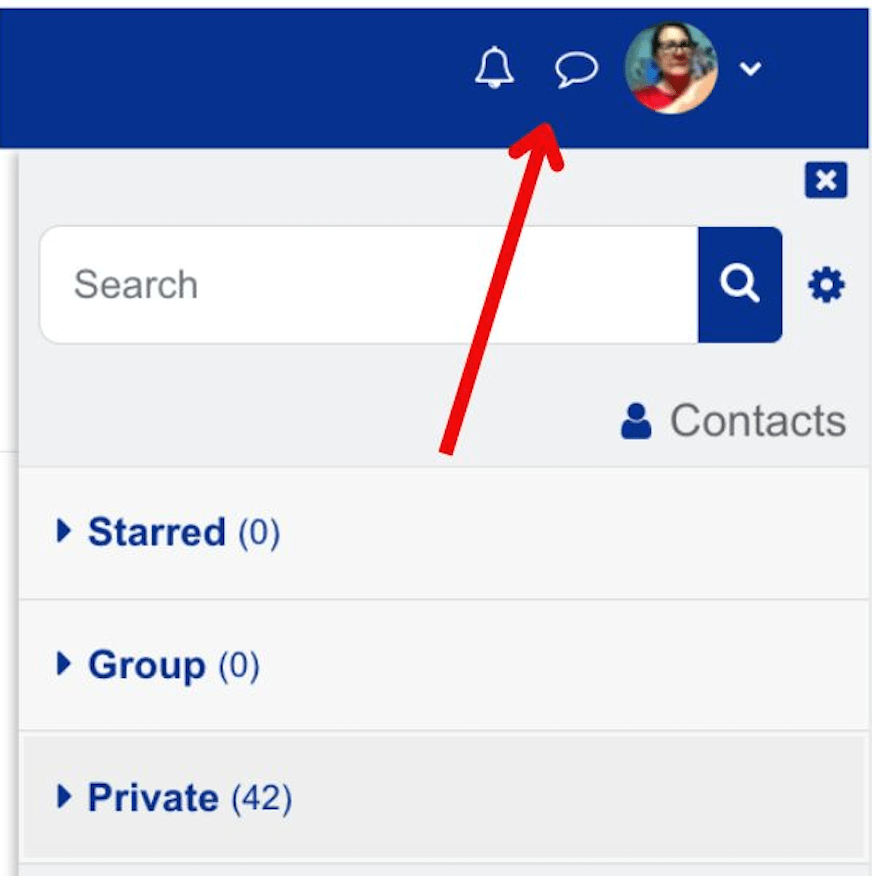
- Add the individual’s name in “Search” box that appears. Select the correct individual from those provided and an email message box will open up. Type message and click send icon.
- OR click on the drop down arrow mark next to your profile circle. You will find “messages” in the drop down. Click on it and a larger focused page open where you add the individual’s name in “Search”. Select the correct individual from those provided and an email message box will open up. Type message and click send icon.

When you have a response/reply to your send message the message icon will have an indication tally next to it. Click on the icon and you will have access to the response.
 fccamaine.com