Posted in ECE Information, MRTQ-PDN, Professional Development

Active Supervision

There have been more questions around “Active Supervision” raised as programs are having this concern raised by Licensing Specialists.

What is Active Supervision?

from HeadStart / ECLKC: “Active supervision promotes a safe environment and prevents injuries in young children. It requires focused attention and intentional observation at all times. Staff use active supervision strategies to make sure children of all ages explore their environments safely. Each program can keep children safe by teaching all staff how to look, listen, and engage.”

“Using active supervision, staff position themselves so that they can always observe all children — watching, counting, and listening. During transitions, they account for all children with name-to-face recognition by visually identifying each child. Staff also use their knowledge of each child’s development and abilities to anticipate what they will do, then get involved and redirect them when necessary. This constant vigilance helps children learn safely. Review Caring for Our Children standard 2.2.0.1: Methods of Supervision of Children to learn more.”


To support providers Maine Roads to Quality Professional Development Network (MRTQ PDN) has new Professional Learning Communities (PLC) about Active Supervision starting April 10th.

Family Child Care & Small Centers, REGISTER HERE

Center-Based Directors & Supervisors, REGISTER HERE

Posted in MRTQ-PDN, Professional Development, QRIS

How to Access MRTQ (moodle facilitated) Trainings on the Training Calendar

A previous 12/22 post on the process of access MRTQ On-demand training.


The Professional Learning Committee of FCCAM has been hearing that providers are having difficulty accessing Maine Roads To Quality Training with confusion of On-demand and facilitated trainings over the moodle platform. Our previous post for just On-Demand is linked above. We hope this post will provide a walk through that helps you in navigating trainings found on the Training Calendar.

It starts by accessing Maine Roads To Quality. There are multiple ways to get to the Training section you want.

  • If you are comfortable logging into your MRTQ Registry (https://mrtq-registry.org/) account start there. DO NOT “Log In” as you would to access the Online/On-demand training.
  • In the menu bar you will see “Training Calendar”. Click on that.

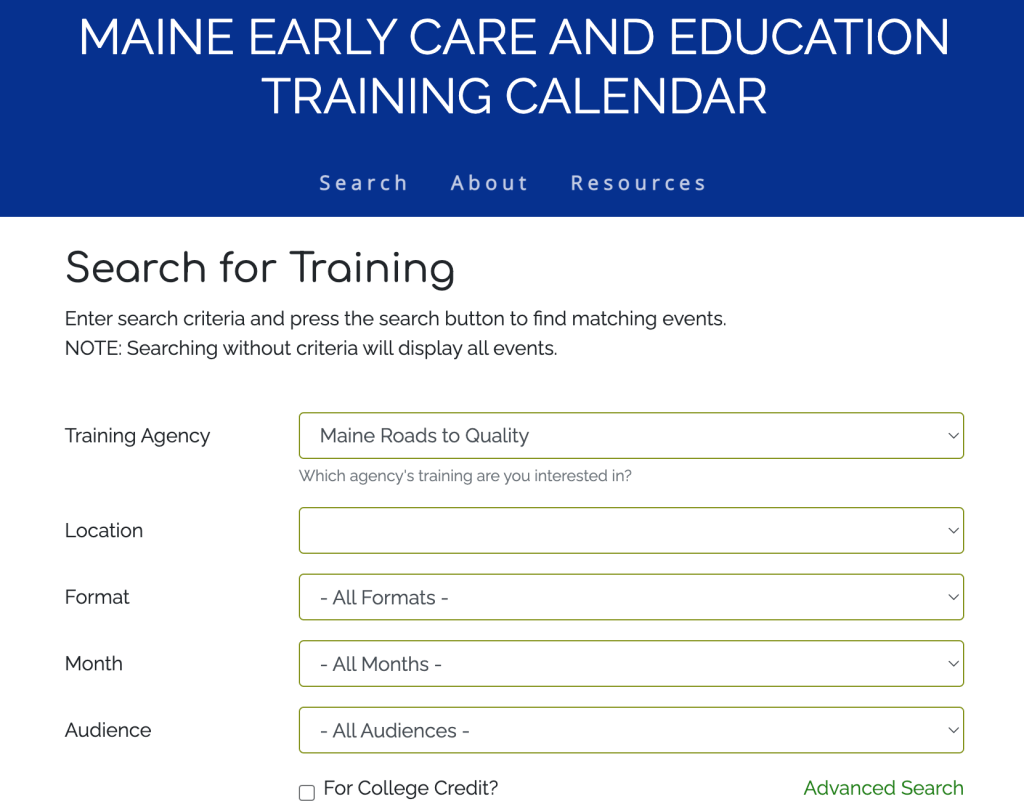
The next page will look something like this:

You can now search trainings from MRTQ as well as other Training Agencies. If you know the name of the training or have a “keyword” you can use the “Advanced Search”

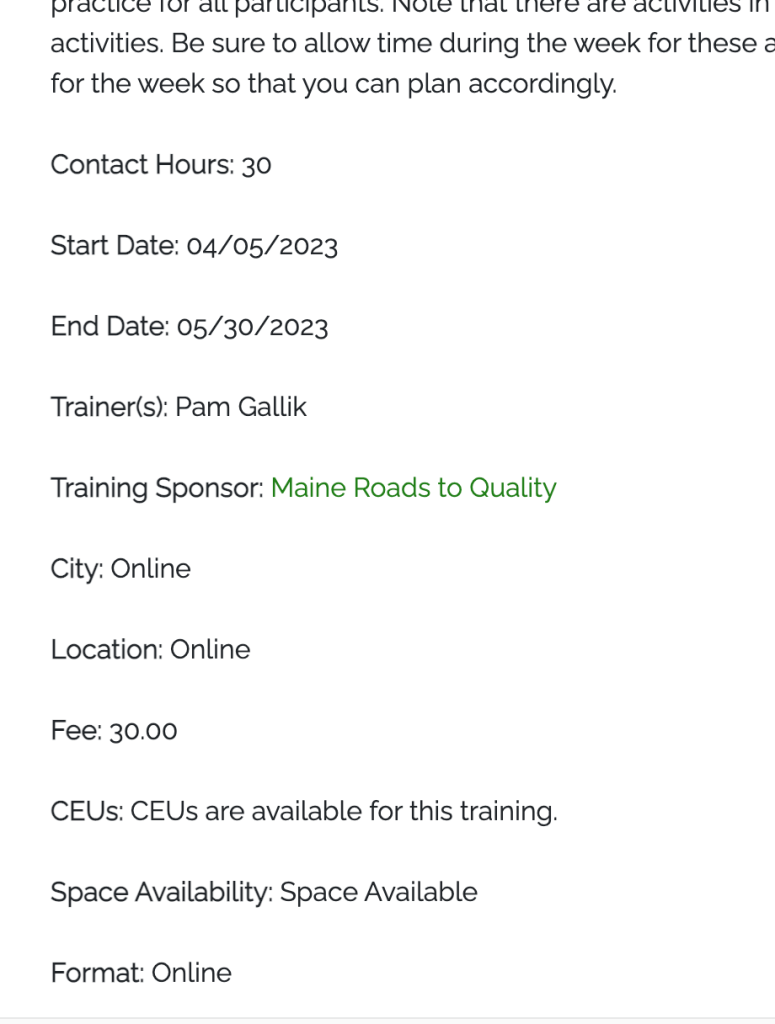
Using Advanced Search for “MELDS” something like this might come up:

You can now access the training period that works for you by “click here for more information”. You will get description and info on the training / cost / location / price / hours / and space in class. etc.

If space in the trainings then proceed to sign up. If full you will be given the option to sign up on a waiting list. It is recommended that you sign up for the waiting list as MRTQ works to build capacity with new trainings when the list starts to fill up. If there are multiple classes being offered check each you could attend for current openings before adding your name to a wait list.

OR

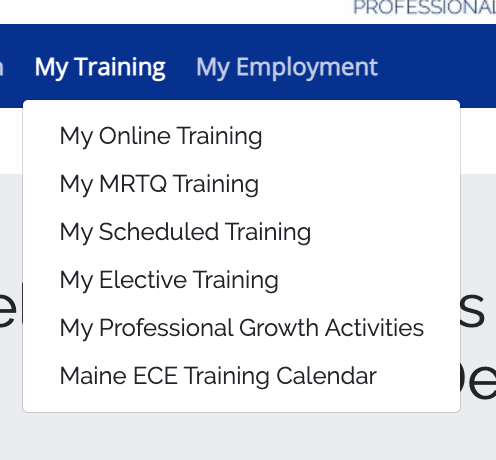
If you access MRTQ from a linked page where you are already logged in to this page you DO NOT need to access Online Training, but use the menu bar. Click “My Training” for the dropdown box and click Maine ECE Training Calendar. Follow the directions explained above for the Calendar Search.

OR

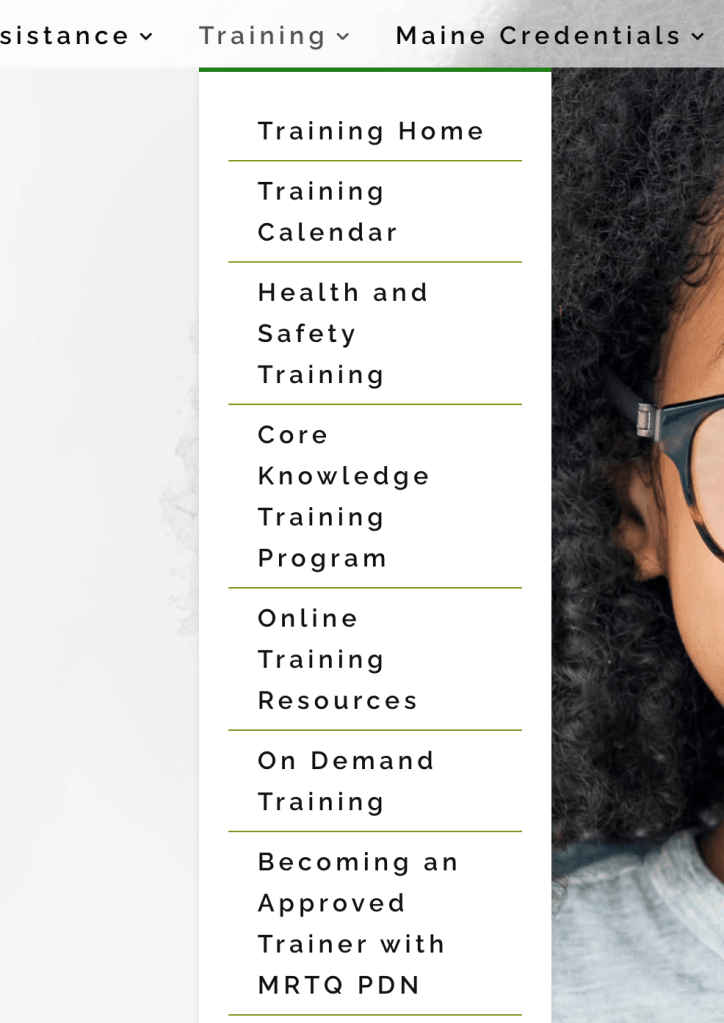
  • Start from the MRTQ home page (https://mrtq.org/). Hover over “Training” and a drop down menu list will appear.
  • You will find “Training Calendar”.
  • Click it.
  • Follow the directions explained above for the Calendar Search.

Once you have registered for a Calendar Training you access it through the Online Training access button.

Clicking on this button gets you to any MRTQ Trainings you are currently enrolled in. (It also gets you to the Quality Improvement Toolkit if you have already enrolled in it for ongoing access.)

The open page should looks similar to this:

Skip the block of language and scroll down a bit. You will see “My courses” and all the trainings you are enrolled in will be listed.

Click on the training title and you will be at the training itself.